Skip to content
adatum
  • Home
  •  About adatum
  •  Learn Azure Bicep
  •  SCOM Web API
SCOM Azure monitor Azure Monitor

Microsoft killed SCOM internally

  • 11/03/201907/01/2025
  • by Martin Ehrnst

Microsoft no longer uses SCOM to monitor their own workloads. They have replaced their entire SCOM based monitoring stack with Azure Monitor. Allegedly reduced alert noise and administration overhead.

Even if I have moved from SCOM as my main responsibility, I am still very much involved in the whole monitoring and management scope. Over the last years we have heard alot of talk about Azure Monitor replacing SCOM, but that cooled off after a while, maybe until now?

Technology change or cultural change

Microsoft’s story on how they killed SCOM internally was released one day before the official announcement on Operations Manager 2019. But we first heard the story at Ignite in 2018. One may ask, why the re-initiate this topic now?
For SCOM 2019, the focus is to better support hybrid cloud environments, which is good. If Microsoft doesen’t want to use it, should you?

I have written and spoken about the use of SCOM as your hub for Azure Monitor, and my opinion hasn’t changed that much. I belive that transition to you a new monitoring stack will happen with changes to the infrastructure.

When you read the article you’ll see that this was the case for Microsoft as well. There are two quotes i find partculary interesting in the announcement.

“This is not just a technology change, but a culture change,” Baxter says. “It wasn’t only that we would remove SCOM central monitoring, but we had to tell our application teams, now you’re going to manage alerts..”

It was January of 2017 when Baxter got the call. “Our goal was not just to get rid of SCOM, but to move to a Software as a Service (SaaS) solution and retire Virtual Machine (VM) based infrastructure,” she says.


The key here is change in culture. Microsoft went full on DevOps for their internal IT, and by doing that technology will change, and your monitoring will follow.
Further, the showcase mention monitoring was desentralized, which is true. But ther’s another key part of this story. The monitoring team built an integration service between their monitoring stack (Azure Monitor, app insights) and their ITSM system. This system allows for more meta data on each alert etc before ending up as a ticket.

Final notes

If you’re organization runs most of your IaaS on premises, you don’t have to make change yet. Allow the culture to drive the change. A long the way, your SCOM environment can be that integration service between Azure PaaS, FaaS, XaaS and ITSM.

Share this:

  • Share on LinkedIn (Opens in new window) LinkedIn
  • Share on X (Opens in new window) X
  • Share on Reddit (Opens in new window) Reddit
Automation

Using Azure pipelines to deploy ARM templates

  • 27/02/201907/01/2025
  • by Martin Ehrnst

There are many reasons that you would use an Azure Resource Manager (ARM) template to deploy your Azure resources. And there’s equally many ways to deploy this kind of template.

For simple one time deployments of Azure resources I tend to use PowerShell or AZ CLI, but lately I have ben busy trying to create a web api based on Azure Functions using C# and .NET core. For those who know me, that’s not straight foreward.
To make things even more diffucult, I wanted to use Azure DevOps and Pipelines to build and push my code. In order to do that, I had to have some infrastructure in place, so why wouldn’t I use Azure Pipelines to deploy the ARM template as well?

Create ARM template

In order to deploy Azure Resource Manager templates, you will need to create one. ARM templates are based on Json and follows a schema. This schema or rule set if you like, defines how you must structure your template.

There are two forms of deployment options. At a resource group level (most common) and subscription level deployment. Both uses the same kind of Json language but have two different schemas. You’ll find the current resource group deployment schema here (no need to read :))

If you are unfamiliar with Json and ARM templates I recommend you to read Microsofts official documentation and getting started guide which will show how you can find the template from an existing deployment or create a new.

For reference, this is a simple template to deploy a web app, that I copied from Microsofts GitHub repo with a bunch of templates to get you started.

Adding ARM template along with your code

As I already mentioned deploy ARM template in a pipeline makes sense in many ways, especially if you have developed an application. This way you can control the infrastructure along side the code.

My Azure Function uses Cosmos DB and Key Vault as parts of it’s infrastructure. It is all developed in Visual Studio Code, and the whole thing is cutting edge for an old operations guy like me.

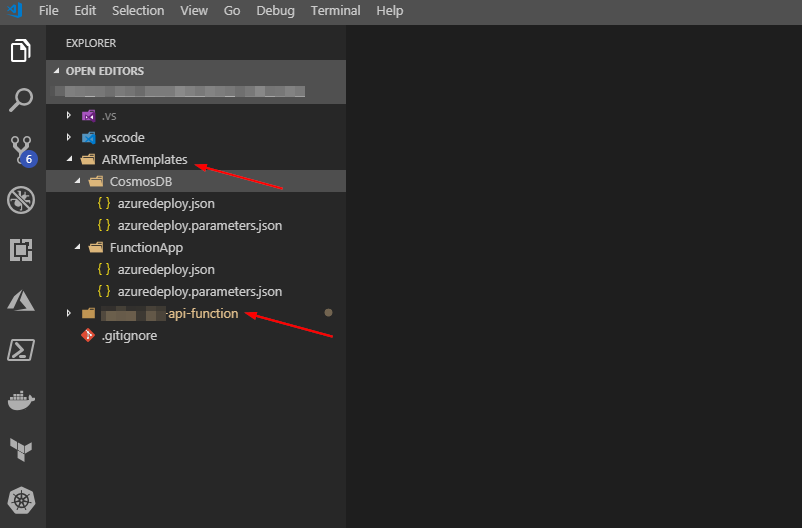
In the picture below you’ll see that I have structured my project in to two subfolders. One is holding the ARM templates, and the other one is for the acutal functions code. I did this so i would be able to chose artifacts from the build process in Azure DevOps pipelines. There might be a better way, but when i had everything in the same folder the templates was packed with the code and not available in deployment pipeline.

vscode function project with arm template folder

Set up the build pipeline

Not long ago I learned that there are two types of pipelines. Build pipelines and release pipelines. Build is used to pack up or actually build the application (same as pressing f5 in Visual Studio). Where release are used for pushing the application on to your infrastructure (and deploy the infra).

For reference. In Azure DevOps, my folder structure looks exactly the same

Next move over to pipelines and create a new release pipeline. From here chose your repository (I use Azure repos).

After chosing your repo, ou can chose to start from a template. My project is a .NET core application and I had no idea what was needed to build that, so a template worked nicely. Here you can chose what’s best for you’re project. The important pieces from an ARM template perspective comes in the next steps

Start out by filling in the obvious. A name and a server to do the build. In my case i run with Azure hosted 2017. In an on premises environment I would use private servers.

Add your templates as build artifacts

What you will need to do next is to take those Json files in your arm template catalog, and make them available as part of the build. You will have to add in a “Copy files” step and fill in a few properties. Pay attention to where I chose the source folder and the destination folder which have a variable reference, $(build.artifactstagingdirectory)/arm

Now. Hit save and queue. This will save your new (or edited pipeline) and start a build of your project.

By now you should also have a build running, and if you’re like me, exploring new stuff, you get used to this

Axure pipelines failed build publish

In this particular error. The publish task for .NET core is missing www root folder. By trial and error I found that I had to make a few changes to my build pipeline. This is not a prerequisite for running ARM templates with Azure pipelines, but i figured I should add in everything I had to do for this project, both for my reference and for yours if needed.

I removed “publish web projects” as i don’t have an ordinary web project, but an Azure function based API.

When you remove this tick, the task will refere to your project file (.CSPROJ).


Here i should give a shout out to my trusty colleague Emil Kjelsrud for helping out, once again.

Hit save and queue once again. Voila!

Configure the release pipeline with ARM templates

When your build is successful, we’re close to launch our application on to Azure. We do that by configuring a release pipeline. It is possible to combine the two, but I like them separated.

Under Pipelines > Releases hit new. A new wizard will pop up. Either chose one that fit your purpose, or start from scratch. In my case I chose to start with app service deployment. One of the first things you notice is “some settings need attention.”

Required settings in this context are the connection to your Azure environment and subscription. You will need to configure this in order to continue. There are several methods available for connecting your pipelines to Azure. I have my pipeline deploying resources in a tenant and subscription that my user does not have access to. That configuration requires a SPN/App registration in Azure AD with the correct permissions.

After configuring your connection. Modify your pipeline by adding in your required Azure Resource Group Deployment tasks. Here comes a few important bits. Prior to setting up my pipeline, I have a resource group created already. If you want to have the resource group created during deployment. You can use the Azure CLI or Azure powershell tasks (or a template) to do so.

Continue to fill in the required parameters. Remember that I separated my application code and the templates in to separate folders? This is why. I can now chose from the same artifact what i want to deploy, as the build pipeline have them available in their respective folders. Chose the template and your parameters file.

In this Azure DevOps environment we have an extension available that parses all outputs from your ARM templates. This way I can use variables from the previous step in my app service deployment. If you dont have this extension available, you can achieve the same result using PowerShell

Create the release

You’re pipeline is now complete. Save and create a release, the pipeline should now pick up the latest build and deploy your code to Azure. You can follow the whole process in Azure, under resource group > deployment and in Azure DevOps

After a few minutes (or seconds) depending on your configuration, you should have both your infrastructure and the actual application available.

Final thoughts

While I understand many of the concepts around infrastructure as code, continious integration and so on, I don’t always use the correct terms, so thank you for reading.

I hope you also have a greater understanding around the concepts, and also how you can utilize the possibilities available. My thoughts working with projects like this is always bound to the operational side. I know I’m going to use more ARM templates in Azure Pipelines, but probably not along side the actual code, as that’s not my day-to-day work. Again, I see my self working more and more with these Dev tools, and thats why I like to say that this is how we do modern Ops.

I leared a few more tips and tricks during this small project, so expect a few more posts soon.

Share this:

  • Share on LinkedIn (Opens in new window) LinkedIn
  • Share on X (Opens in new window) X
  • Share on Reddit (Opens in new window) Reddit
Azure

Microsoft Secure application model

  • 20/01/201907/01/2025
  • by Martin Ehrnst

Secure application model was released by Microsoft late last year (2018). At that time, I noticed it and didn’t quite understad how it impacted my work. I therfore moved on.

A few weeks ago i discovered what this change actually means.
If you are a Microsoft cloud service provider or a control panel vendor, you will have to change to this new model of authentication soon. Depending on how you deliver apps or how you manage your customer tenants, there’s quite some work to do.

Microsoft is forcing all user accounts with access to CSP with MFA. That is great, but if you (and likely you are) using app + user credentials to access partner center you cannot do this programmatically, as the current method uses password grant. I have written about how that method works here.

The secure application model depends on refresh tokens and access tokens. As a service provider your customers will have to consent to an application getting access to their tenant. When the admin user consent, you will get a code response. This code is used to create a refresh token, which later can be used to access Azure or other resources.
I do not have the mandate to learn you how refresh and access tokens work, but i found the articles on Oauth.com pretty good.

The below picture shows a broad overview of the flow and ‘infrastructure’ required. I suggest you download the document as well.

Token flow in the secure application model

Secure application model infrastructure

i have built these examples with PowerShell to authenticate to a customer tenant using the new model. The model used here assumes you function as a managed service provider. Maintaining your customers Azure tenants and subscriptions. That way you can consent on behalf of your customers. If you provide Azure market place applications, the process is a bit different, but infrastructure wise, were using the same tools.

In my implementation of secure application model I have used the following tools.

  • Azure KeyVault
  • Multi tenant Azure AD Application, with access to the APIs you require.
  • A user able to consent (in my case member of Admin Agents in CSP)
  • Single tenant AAD app to authenticate against KeyVault

Multi tenant Azure AD application

If you find this blog post interesting, I assume you already have a multi tenant AAD app used in your integration or software delivery.
If not, you can check out my blog post on how to create Azure AD apps using PowerShell

In my case I have one application used to monitor customers workloads in Azure. This application have access to Azure Management APIs

Single tenant web app

This is the additional application needed. This application will represent your system. In my case a monitoring tool. I use this application registration to access key vault where I have stored my refresh token. The refresh token is then used to get an access token from a customer tenant.

Azure Key Vault

We need a secure place to store the refresh token and possibly other stuff down the road. I chose to run with Key Vault. There are multiple blog posts and documentation on how to provision and give permissions in key vault, but remember to give your single tenant application read and write access to secrets.

Using PowerShell and Rest APIs

As I have multiple times before, I chose to run with REST rather than PowerShell modules. Feel free to use modules or SDKs, it just doesen’t work that well in my environment.

Getting consent

I’m sure theres much slicker ways to do this, but I only needed one consent to make our integration work. If you have multiple refresh tokenst etc. I would build some kind of callback service that could handle the consent flow.
Alter the following code to your needs, paste it in your web browser and sgn in with apropriate credentials. In return, you will have recieve a code. Copy and use this in next step.

Azure AD refresh token

Now that you have consent it is time to get a refresh token. This is what you later use to get access tokens from your customer tenants. By default and if used. The refresh token is valid for 90 days. You will have store this in Key Vault or a similar service.
Add your information to the script below to get your refresh token.

Write and retrieve from Key Vault API

Since you don’t want to get a new consent every time, you will need to save your refresh token to a secure place. I chose to run with Key Vault, but feel free to chose what ever software you want. Below are two snippets that will allow to write and retrieve secrets from Azure KeyVault.
You will have to get your key vault URL and the single tenant application id and secret.
That way your application accessing customers tenants, in my case a monitoring system, have it’s own credentials, separated from the credentials aquiring the refresh and access tokens.

Retrieving data from customer tenant

It’s time to connect to your customers tenants. Before doing that, lets summarize. By now you should have the following in place

  • One multi tenant application with Api access and proper consent.
  • A key vault with the a refresh token
  • A single tenant (your integration) application with access to key vault
  • AppID and access keys for bot application registrations.

Below I have included three examples on how to retrieve data from your customers. The first will get all customers from partner center, second will use the same refresh token to access Microsoft Graph, and the third will access Azure management API’s (Azure Resource Manager). In order for this to work, your multi tenant app must have access to these APIs

Share this:

  • Share on LinkedIn (Opens in new window) LinkedIn
  • Share on X (Opens in new window) X
  • Share on Reddit (Opens in new window) Reddit

Posts pagination

1 … 10 11 12 13 14 … 18

Popular blog posts

  • Azure Application registrations, Enterprise Apps, and managed identities
  • Migrate from Azure DevOps to GitHub - what you need to know
  • Azure token from a custom app registration
  • GitHub actions federated identity with Azure AD
  • RunAsRadio - App registrations and enterprise apps

Categories

Automation Azure Azure Active Directory Azure Bicep Azure DevOps Azure Functions Azure Lighthouse Azure Logic Apps Azure Monitor Azure Policy Community Conferences CSP Monitoring DevOps GitHub Guest blogs Infrastructure As Code Kubernetes Microsoft CSP MPAuthoring OMS Operations Manager Podcast Powershell Uncategorised Windows Admin Center Windows Server

Follow Martin Ehrnst

  • X
  • LinkedIn

RSS feed RSS - Posts

RSS feed RSS - Comments

Microsoft Azure MVP

Martin Ehrnst Microsoft Azure MVP
Adatum.no use cookies to ensure that we give you the best experience on our website. If you continue to use this site we will assume that you are happy with it. Cookie Policy
Theme by Colorlib Powered by WordPress