Skip to content
adatum
  • Home
  •  About adatum
  •  Learn Azure Bicep
  •  SCOM Web API
Azure

Working with Azure Monitor Rest API

  • 29/02/202007/01/2025
  • by Martin Ehrnst

It might be an edge case, or you are creating your own integration. But chances are, after fiddling around with Azure Monitor, you encounter a situation where you would have work with its API.
Personally, I have numerous situations over the last years, that required me to integrate directly with Azure Management APIs

In this blog post, I will help you get started using the APIs, hopefully making it less intimidating. All code examples will use PowerShell.

Create SPN and assign it to your subscription RBAC

I am using a service principal in order to connect programmatically to Azure. SPNs are created in Azure Active Directory as Application Registrations. You can choose whether you want to do this via the portal, or by using PowerShell.

After creating (or using an existing SPN) grant the application appropriate access. For simplicity, I am using contributor to my subscription. That might be best for you as well, but one should always use the least privileged assignment needed.

Consider the above as a prerequisite for you to continue.

At this point, you should have an application registration, a secret, and a role assignment on your subscription. We can now use this to acquire an access token and connect to Azure Monitor’s REST API.

Connect to Azure Monitor API using PowerShell

Azure Monitor APIs are a part of the Azure Management APIs. I will, therefore, use these names interchangeably. Also keep in mind, that all other APIs under Azure Management will follow the same methods I demonstrate for Azure Monitor.

To query data we need to authenticate. In the example below, I am using client credentials to acquire the access token. Microsoft’s official example is using the ADAL method, connecting with your identity. I have never had the use for this, as I am usually writing integrations service-to-service.
If you are creating an interactive portal and want to leverage the user’s authorization, ADAL (or MSAL) are probably better.


Retrieve Azure Monitor alert rules

I have no idea why you are exploring Azure Monitors API. Providing an integration solution is therefore not possible. But my gut feeling is that alerts and metrics is a good place to start.

When working with alerts, we need to work with multiple endpoints. Depending on what you are working on, these are the most common;

  • Alert rules*
  • Alert incidents
  • Metric Alerts
  • Metric Alert status

We can start with one of the basics, retrieve the current configured alert rules. To do that, we need to know what kind it is. The classic alert rules (old type) use a single endpoint, while the current use it’s own.

Below I have included three endpoints and a screenshot. As you can see, all the information that you expect is to be found in the output. From here we can start to explore the alert rule by accessing its properties.

Azure monitor rest api metric alert rule output

Get resource metrics from Azure Monitors API

Metrics is another fundamental in monitoring. When we work with the API in the context of metrics. You can explore the available metrics for each resource type by using the Metric Definitions endpoint.

Actual metrics values require a bit more when it comes to the actual query. The official documentation describes everything pretty well, but I have provided an example for a VM below. This example shows the basics of how you get data from one metric and one VM. You can add multiple metrics to one query, and do additional filtering using the OData filter.


Manage alerts, updating status, etc.

Viewing configured alert rules, looking at disk metrics for a VM. What about alerts. The actual things that send you emails- can we work with them using this API? Yes, you can.

Like I said. Providing an integration solution in this blog post isn’t possible. but most integrations I have seen with Azure Monitor or other monitoring solutions have had some kind of functionality to handle active alerts. Personally, I have created one for SquaredUp earlier, where we could acknowledge alerts in Azure Monitor as well as our on-premises SCOM installation.

Before we wrap up. Let’s take a look at how we can interact with an active alert. I have configured a very naggy alert rule, creating a lot of noise, and I want to change the status of those alerts. Armed with PowerShell and the alerts management endpoints everything is possible.

Summary

This blog post has covered the basics regarding the Azure Monitor REST API and PowerShell. With the examples above and the official documentation, you can start creating your own solutions and integrations.

While we have only covered how to get data out of Azure Monitor, you should know it’s also possible to inject data. By using the HTTP data collector API and the Metric store possibilities are ‘endless’.

Integrations ideas

  • Alert remediation/handling from a ticketing system
  • Dashboarding with third-party or custom web integration
  • Teams/Slack/IM connector
  • Custom application metrics or logs

In my examples, I have purposely not included how new alert rules are created, as I believe this should be done through ARM. If that is your use case, you should know it is possible and fully supported.

This blog post was originally published in November 2017. Rewritten for Azure Spring Clean 2020 and to reflect changes to Azure Monitor API

Share this:

  • Share on LinkedIn (Opens in new window) LinkedIn
  • Share on X (Opens in new window) X
  • Share on Reddit (Opens in new window) Reddit
azure spring clean 2020 Azure

Azure spring clean 2020

  • 30/01/202007/01/2025
  • by Martin Ehrnst

Azure spring clean is a community initiative where the idea is to convey best practices and lessons learned managing Azure. During February 2020 we will have a broad selection of blog posts and videos on Real-world scenarios and solutions from the community. Covering topics like Azure Monitor, policies, and cost management.

The first post goes online on February 3.

DateArticleContributorCategory
03/02/20Azure RBAC – Best PracticesAlan KinaneAzure Foundations
04/02/20Azure Policy for AKSSam CoganAzure Policy
05/02/20Monitoring Containers on Azure with Windows Admin CenterDave RendรณnAzure Monitor
06/02/20How to use Tags to organize your Azure resourcesWim MatthyssenAzure Foundations
07/02/20Azure Governance – Best PractisesAmine CharotAzure Foundations
10/02/20Nailing your Naming Convention with Azure PolicyMatt BrowneAzure Foundations
11/02/20Azure Cost Management – Best PractisesSarah LeanAzure Cost Management
12/02/20Protect your network resources with Azure FirewallLuis BeltranAzure Security Principles
13/02/20Monitoring Azure Site RecoveryKarel De WinterAzure Monitor
14/02/20Using Azure Advisor to baseline your platformSam HodgkinsonAzure Foundations
17/02/20Using Azure Resource Graph To Assess Your Azure Environment Quickly & EfficientlyJack TraceyAzure Foundations
18/02/20Azure Monitor – Best Practices for SanityKam SalisburyAzure Monitor
19/02/20Azure Storage and Backup Lifecycle Best PracticesDwayne NatwickAzure Foundations
20/02/20How to Use and Monitor Azure Update ManagementVukasin TerzicAzure Fundamentals
21/02/20Azure Security: my top 10 best practises to make your tenant secure as possibleShabaz DarrAzure Security Principles
24/02/20Simplify Large Scale Deployments with Azure BlueprintsIsham MohamedAzure Foundations
25/02/20Azure Kubernetes Service (AKS) securing Clusters and ApplicationsAdil TouatiAzure Security Principles
26/02/20Azure Monitor โ€“ Autoscaling Resources Based on PerformanceAnthony MashfordAzure Monitor
27/02/20How to Avoid a Billing Shock With Azure Serverless SolutionsStanislav LebedenkoAzure Cost Management
28/02/20Securing Your Azure Platform Web ApplicationsTidjani BelmansourAzure Security Principles


Thanks to all the content creators, MVPs Joe Carlyle and Thomas Thornton for starting this!

Share this:

  • Share on LinkedIn (Opens in new window) LinkedIn
  • Share on X (Opens in new window) X
  • Share on Reddit (Opens in new window) Reddit
Azure

Access to Blob storage using Managed Identity in Logic…

  • 23/01/202007/01/2025
  • by Martin Ehrnst

I am delighted to share the first guest post on my blog.
Nadeem Ahamed Riswanbasha is a cloud enthusiast and community contributor working for Serverless360 in India.

Please check out his Twitter and LinkedIn profile.

Access to Blob storage using Managed Identity in Logic Apps

By default, when we create a new blob storage container the level of public access will be set to โ€œPrivate (no anonymous access)โ€. This is because to extend the security level of the blob container. Nevertheless, if the user wishes to set the level of public access to โ€œcontainer (anonymous read access to the container)โ€ which allows accessing the file by anyone, then it can be modified at the time of creation.

Assume, the business use case needs a high level of security and wants to keep the container/blob more secure. In this case, there are a lot of ways to access the secured blob/container through proper authentication. One way of achieving authentication is through Managed Identity.

What is Managed Identity?

Managed Identity allows you to authenticate to Azure AD and access Azure resources. At the backend, the identity (credentials) will be managed and secured for you. The user doesnโ€™t necessarily need to provide or rotate the secrets.

There are two types of Managed Identity

System-assigned

The lifecycle of a system-assigned identity is directly tied to the Azure service instance that it’s enabled on (Logic app here). So, if this Logic App is deleted, Azure automatically cleans up the credentials and the identity in Azure AD.

User-assigned

User-assigned managed identity is created as a standalone Azure resource i.e. Not tied to any service. So, it is the same as explicitly creating the AD app and can be shared by any number of services.  Currently, Logic Apps only supports the system-assigned identity. Now, let us explore how to authenticate access to Azure Blob storage using Managed Identity in Logic Apps.

Enable managed identity in Logic Apps

First off, we need to enable the system-assigned identity in the logic app that you wish to access the blob storage through.
To do this, follow the steps below;

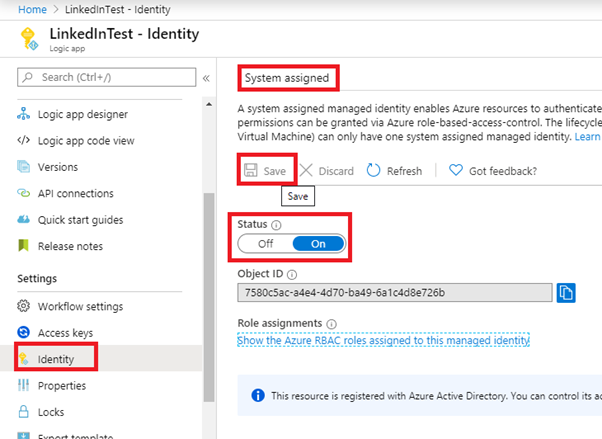
  1. Go to the logic app menu and select the identity option under settings
  2. A new window will be prompted under which switch the status option to ON and click Save.
enable system assigned identity in Logic App

Give managed identity access to Blob storage through RBAC

  1. Switch to the Azure Blob Storage container menu
  2. In the left pane, click on the Access control (IAM)
  3. Go to the Role Assignments option and click Add
  4. Now, a new blade will be opened on the right side of the window
  5. Fill in the details as follows;
    Role – Storage Blob Data Contributor
    Assign access to โ€“ Logic App
    Select โ€“ <your logic app>
add role assignment RBAC

You can now see that the Logic App has been assigned as a Storage Account Contributor in the role assignment section.

Design the Logic App to access the Blob

Now, let us jump in and design the logic app to access the blob storage container or files into it. But remember, not all the trigger and actions of the logic app supports managed identity feature. Here is the list of triggers and actions that supports it.

  1. Now, let us head back to the logic app (here LinkedInTest) designer page
  2. Add a Recurrence trigger for the logic app with a defined interval of time
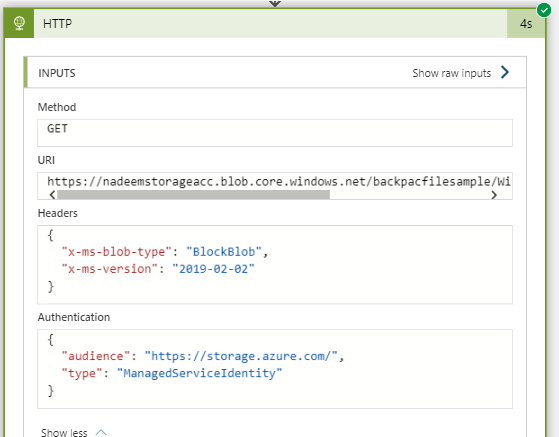
  3. Subsequently, add a new HTTP (it supports managed identity) action to the logic app
  4. In the HTTP action, fill the following fields as follow;
    • Method โ€“ Get
    • URI – <the URI of the blob>
    • Headers โ€“
    • x-ms-blob-type: BlockBlob
    • x-ms-version: 2019-02-02
    • Authentication โ€“ Managed Identity
    • Audience โ€“ https://storage.azure.com (this sets the scope to all of your storage accounts)

Test your Managed Identity enabled Logic App

Save the logic app and run it. You can now see in the run history of the logic app that blob content has been successfully accessed through managed identity authentication.

Wrap-up

In this blog, we have seen how to access blob using a system-assigned managed identity in the Logic Apps. 

 On enabling the logic apps managed identity, an AD app gets created with the same name as that of the azure service (here LinkedInTest, logic app) in Active directory, you can check it in Enterprise Application.

Hope you enjoyed reading this article. Happy Learning! 

Share this:

  • Share on LinkedIn (Opens in new window) LinkedIn
  • Share on X (Opens in new window) X
  • Share on Reddit (Opens in new window) Reddit

Posts pagination

1 … 7 8 9 10 11 … 18

Popular blog posts

  • Azure Application registrations, Enterprise Apps, and managed identities
  • Migrate from Azure DevOps to GitHub - what you need to know
  • Azure token from a custom app registration
  • GitHub actions federated identity with Azure AD
  • RunAsRadio - App registrations and enterprise apps

Categories

Automation Azure Azure Active Directory Azure Bicep Azure DevOps Azure Functions Azure Lighthouse Azure Logic Apps Azure Monitor Azure Policy Community Conferences CSP Monitoring DevOps GitHub Guest blogs Infrastructure As Code Kubernetes Microsoft CSP MPAuthoring OMS Operations Manager Podcast Powershell Uncategorised Windows Admin Center Windows Server

Follow Martin Ehrnst

  • X
  • LinkedIn

RSS feed RSS - Posts

RSS feed RSS - Comments

Microsoft Azure MVP

Martin Ehrnst Microsoft Azure MVP
Adatum.no use cookies to ensure that we give you the best experience on our website. If you continue to use this site we will assume that you are happy with it. Cookie Policy
Theme by Colorlib Powered by WordPress